Start a 1-on-1 call
You can start 1-on-1 audio or video calls with your contacts directly from the conversation page. It saves all the efforts of starting a meeting and inviting the person in.
Windows and macOS
Start a 1-on-1 Call
Start a 1-on-1 Call from the Chat Page
-
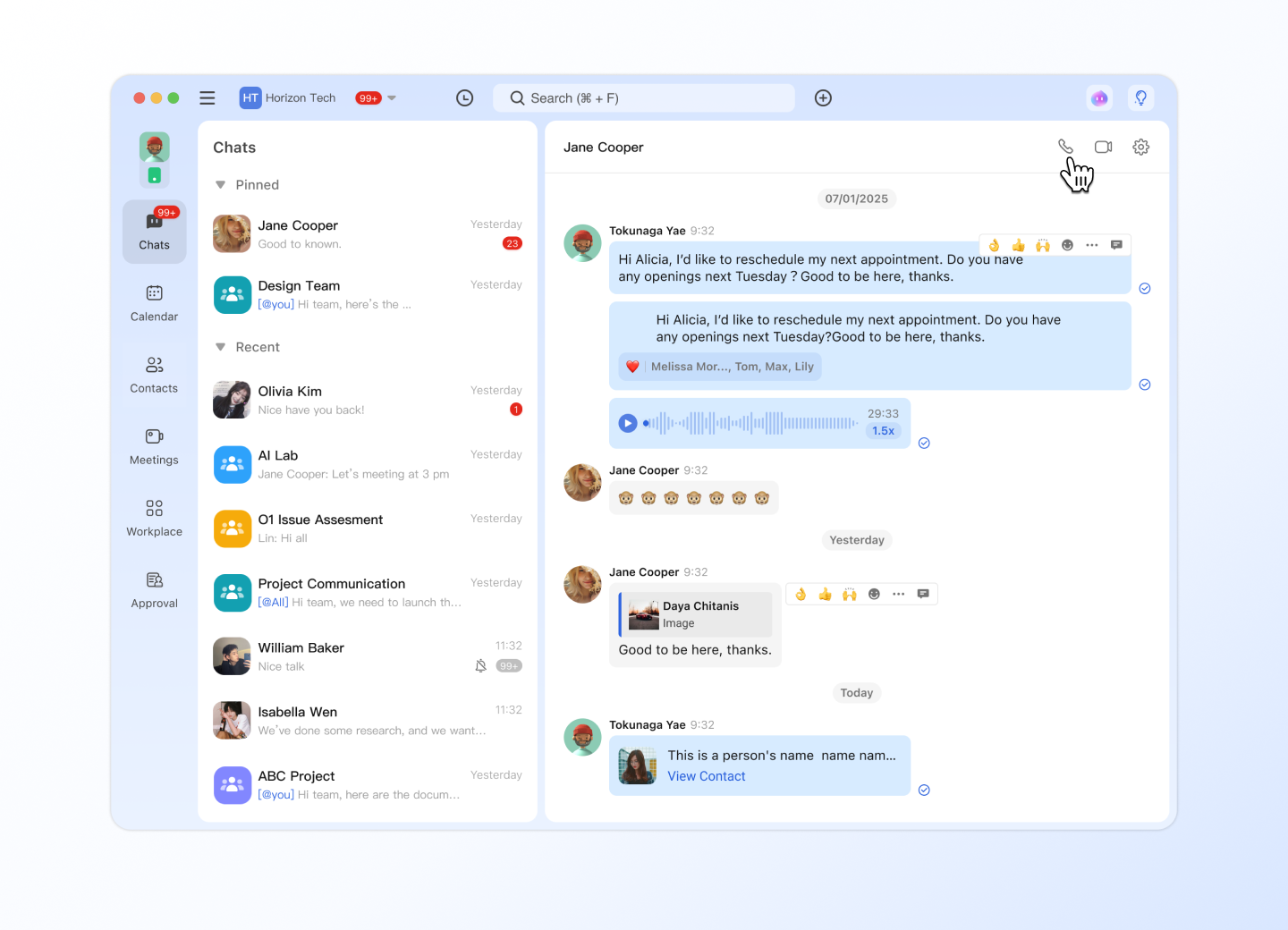
Go to the chat with whom you want to call and click the video call icon
 or audio call icon
  on the upper right to start a video or audio call.
 -
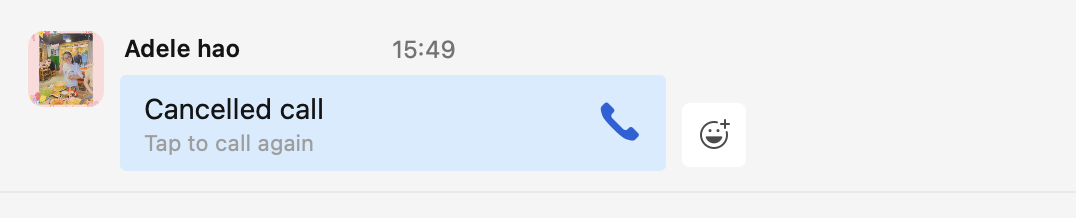
If the user you call does not answer, you can click the message to call again.
Start a 1-on-1 Call from a Contact Info Card
Click on the profile photo of the contact you want to call and the contact info card will pop out. Click the video call icon or audio call icon to start a video or audio call.
Notification Messages
There will be notification messages of calls in the chat with your contact. Suppose A represents a user and B represents another user.
If A calls B and B answers the call and the call is connected normally, then A receives a message saying “Outgoing call” and B receives a message saying “Received call” in their chat after the call ends.
If A calls B and B is in a call/meeting, then A receives a message saying "User busy" and B receives a message saying "Missed call".
If A calls B and B rejects, then A receives a message saying "User busy" and B receives a message saying "Rejected call".
If A calls B and B does not answer the call for more than one minute, then A receives a message saying "No answer" and B receives a message saying "Missed call".
If A calls and then cancels the call, then A receives a message saying "Cancelled call" and B receives a message saying "Cancelled call".
Answer a 1-on-1 Call
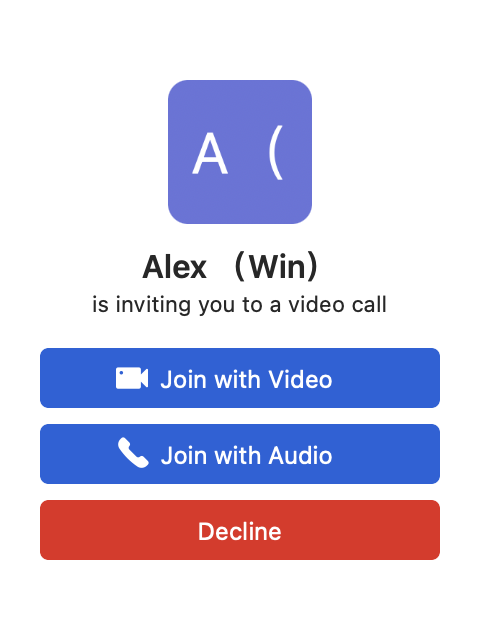
When someone calls you, you will see a pop-up window, and you can choose to answer with or without video.
Join with Video: when the call is connected, your camera is turned on.
Join with Audio: when the call is connected, your camera is off.
Control a Call
After the call is connected, you will enter the call page. You can switch the camera and microphone on or off during the call.
Turn on the microphone : your contact will hear your voice when you speak.
Turn off the microphone : your contact cannot hear you when you speak.
Turn off the camera : your contact cannot see your video.
Turn on the camera : your contact will see your video.
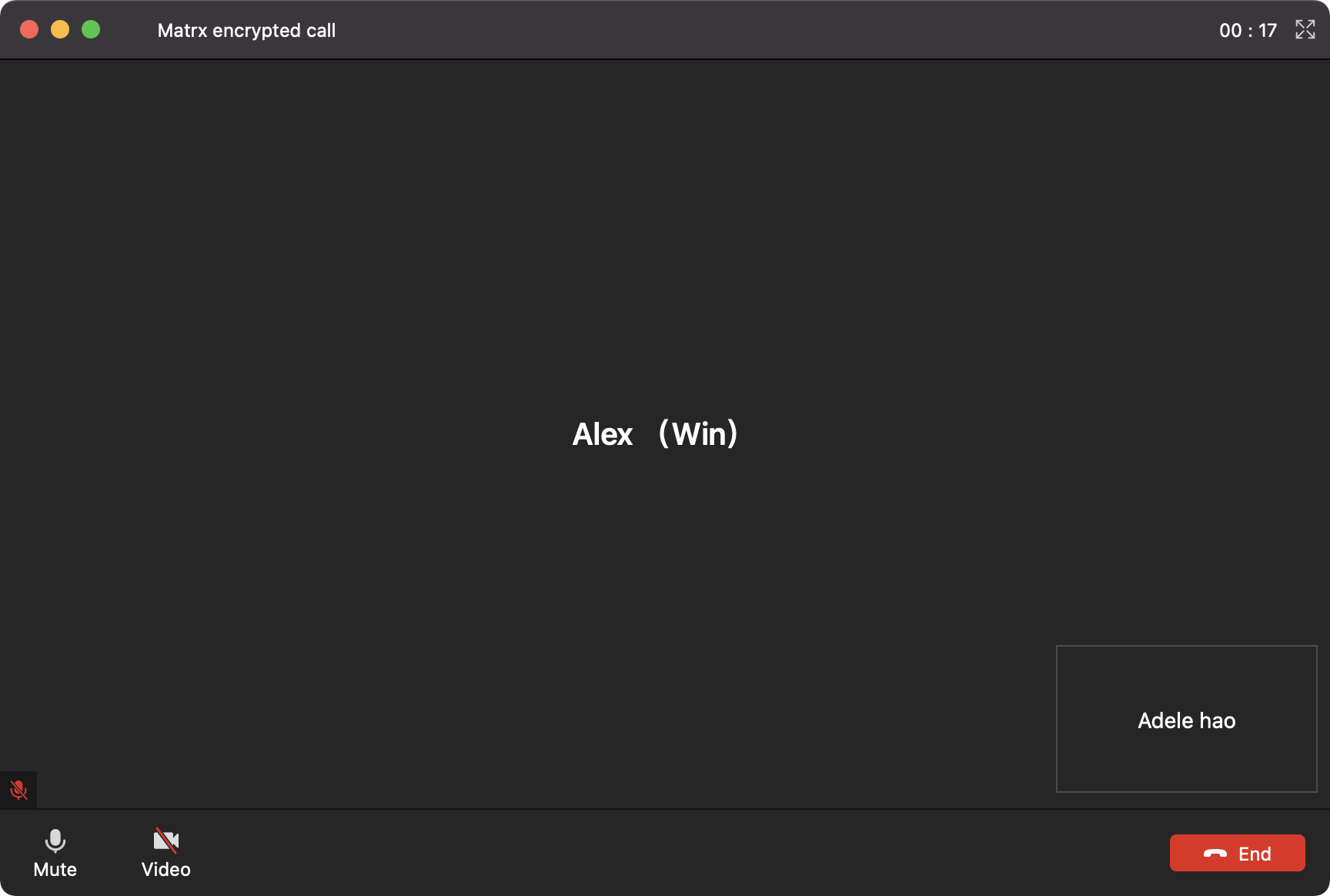
Switch screen
You can click on the screen in the lower right corner to switch between large and small screens.
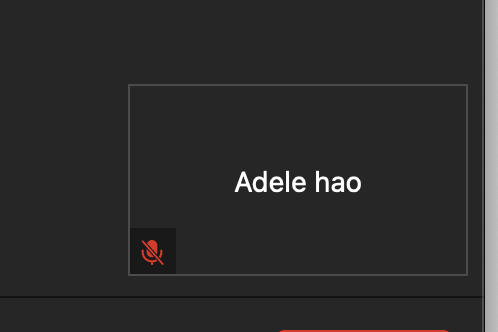
End a Call
By clicking the "End" button you can end the call.
Android and iOS
Start a 1-on-1 Call
Start a 1-on-1 Call on the Chat Page
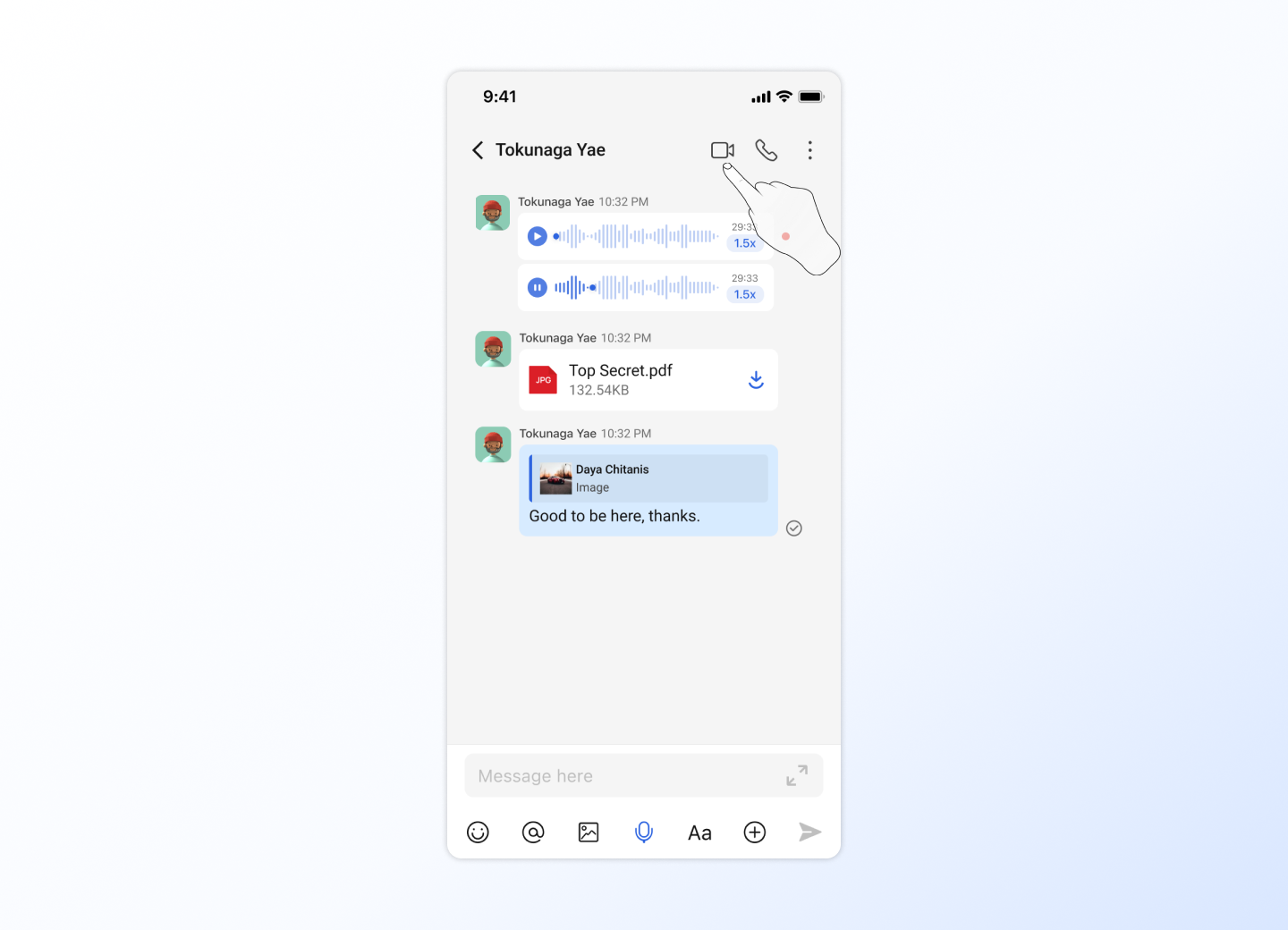
1. Go to the chat with whom you want to call and tap call icon  on the upper right of the chat page and 2 options will pop out at the bottom of the page.
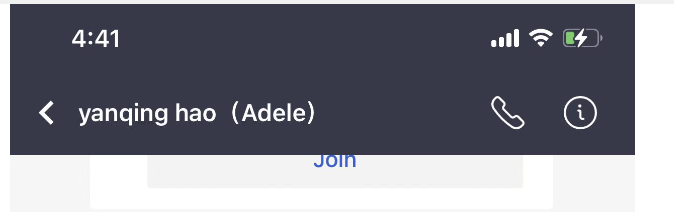
- Tap Video Call or Audio Call to start a video or audio call.
Start a 1-on-1 Call from a Contact Info Card
Click on the user's avatar who needs to call, and the information card will pop up. Select the "video call" button or "audio call" button to start the call.
Notification Messages
There will be notification messages of calls in the chat with your contact. Suppose A represents a user and B represents another user.
If A calls B and B answers the call and the call is connected normally, then A receives a message saying “Outgoing call” and B receives a message saying “Received call” in their chat after the call ends.
If A calls B and B is in a call/meeting, then A receives a message saying "User busy" and B receives a message saying "Missed call".
If A calls B and B rejects, then A receives a message saying "User busy" and B receives a message saying "Rejected call".
If A calls B and B does not answer the call for more than one minute, then A receives a message saying "No answer" and B receives a message saying "Missed call".
If A calls and then cancels the call, then A receives a message saying "Cancelled call" and B receives a message saying "Cancelled call".
Answer a 1-on-1 Call
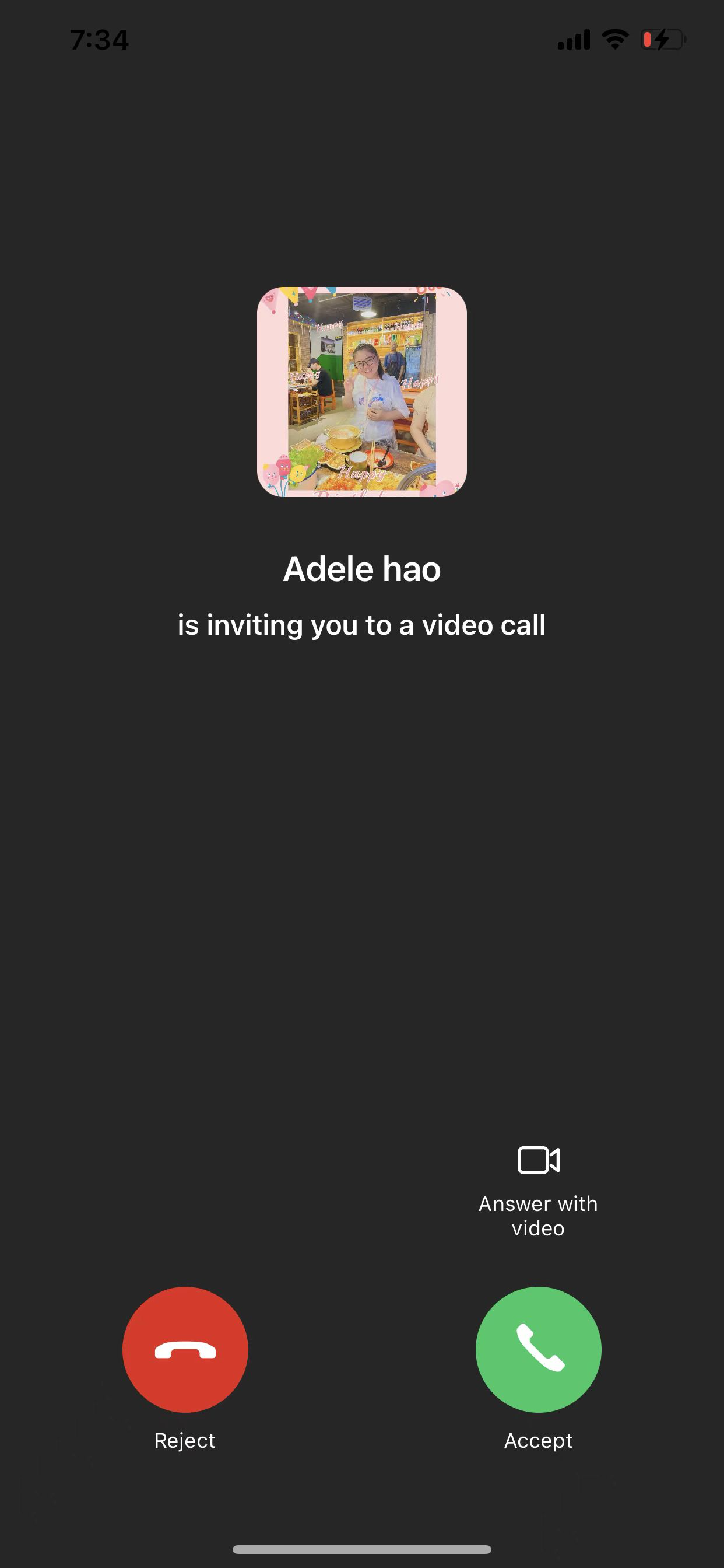
When someone calls you, you will see a pop-up window, and you can choose to answer with or without video.
Answer with Video : when the call is connected, your camera is turned on.
Accept : answer with audio, meaning when the call is connected, your camera is off.